
Running AI models locally has become increasingly accessible thanks to tools like Ollama. Whether you’re experimenting with different models, writing code, or chatting with AI, there’s plenty you can do without relying on a cloud service.
But once you’ve got a model running on your computer, what else can you do with it?
Here’s one surprisingly practical use: translating websites as you browse.
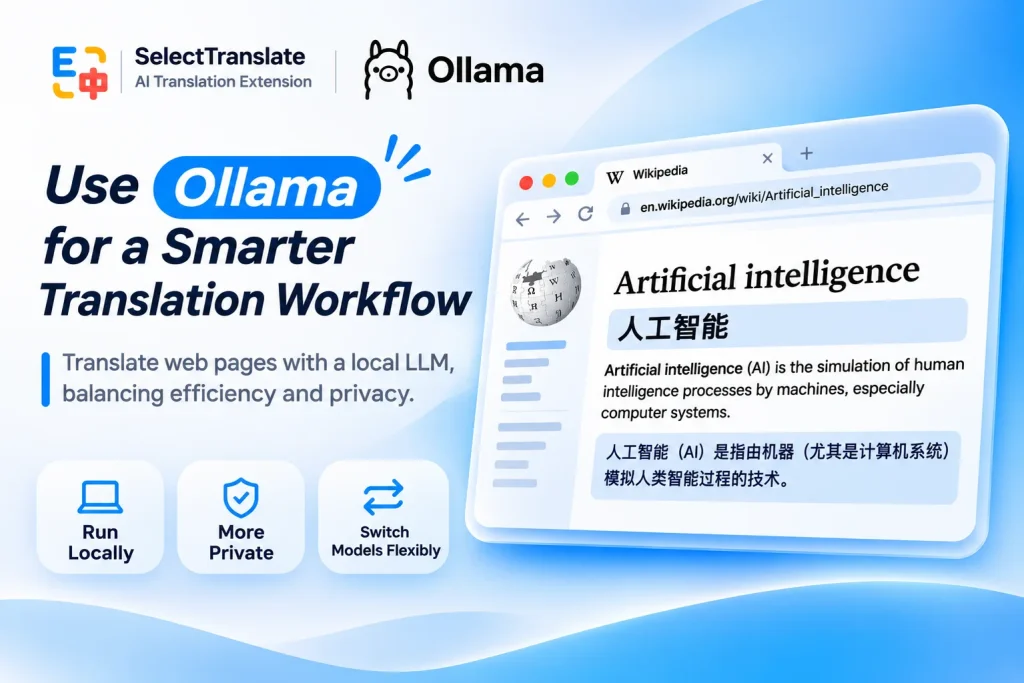
By connecting Ollama to SelectTranslate, you can use a locally running AI model to translate foreign-language websites directly in your browser. No more copying text into a chatbot or switching back and forth between tabs. You can read translations right alongside the original content, without relying on a cloud AI model for every request.
Put Your Local AI to Work in the Browser
Imagine you’re reading technical documentation on GitHub, exploring an international news site, or browsing discussions in a language you don’t understand.
You could copy unfamiliar passages into an AI chatbot, wait for the translation, and then return to the original page. That works well enough for a sentence or two. But when you’re reading an entire article or moving between multiple websites, the constant switching quickly becomes frustrating.
What if the AI model already running on your computer could handle the translation directly?
That’s where SelectTranslate comes in.
SelectTranslate is an AI-powered browser extension that supports multiple translation models, including local models running through Ollama. Once connected, it can translate webpage content using your local model and display the results directly on the original page.
You can choose between two reading modes:
- Bilingual Mode: Displays the translation alongside the original content, making it easier to follow the text and check unfamiliar terms.
- Translation-Only Mode: Shows the translated content for a more streamlined reading experience.
For example, when reading English documentation on GitHub, you can keep the original text visible while reading translations beneath it. The webpage remains accessible, so you can continue browsing without moving the content into another application.
Instead of keeping your local AI confined to a chat window, you’re putting it to work in a tool you use every day.
Local AI vs. Cloud AI Translation: What’s the Difference?
Cloud-based AI translation is convenient and widely available. So why bother running a model on your own computer?
The biggest differences come down to cost, privacy, control, and performance.
| Feature | Local AI Translation | Cloud AI Translation |
|---|---|---|
| Cost | No per-token cloud API fees for local inference | Free tiers, subscriptions, or usage-based pricing |
| Privacy | Translation text can be processed on your device | Text is generally sent to the provider’s servers |
| Internet Access | Local inference works offline once the model is installed | An internet connection is required for model requests |
| Performance | Depends on your hardware and model size | Depends on the provider’s infrastructure and network conditions |
| Model Selection | Install and switch between compatible local models | Limited to models offered by the provider |
| Setup | Requires installing and configuring a local model | Usually ready to use with minimal setup |
No Per-Token Cloud API Fees
One of the biggest advantages of running models through Ollama is that local inference doesn’t require paying for cloud API calls.
If you regularly translate articles, documentation, or other lengthy content, you can use your local model without worrying about per-token cloud API charges.
That doesn’t mean local AI has zero cost. Running a model still uses your computer’s processing power, memory, and electricity. But it gives you a different way to manage the cost of frequent translation.
More Control Over Your Data
Privacy is another compelling reason to consider local AI.
When you use a model running entirely on your own computer, the translation itself can be processed locally rather than sent to an external AI provider.
This can be particularly useful when working with internal documentation, research materials, or other content you’d prefer not to submit to a cloud AI service.
There is one important distinction, however: local AI inference doesn’t automatically mean everything stays offline. Websites still require internet access, and browser extensions or other enabled services may make their own network requests. The actual data flow depends on your configuration.
How to Connect Ollama to SelectTranslate
Getting started involves three steps: set up a local model, connect it to SelectTranslate, and start translating websites.
Step 1: Install Ollama and Set Up a Model
If you haven’t installed Ollama yet, download it from the official Ollama website. It’s available for macOS, Windows, and Linux.
Once installed, browse the Ollama model library and choose a local model that fits your hardware and supports the languages you want to translate.
If you’ve already downloaded models, you can see which ones are installed by running:
ollama list
Before connecting a model to SelectTranslate, it’s worth testing it with a short translation request to make sure it responds correctly.
Keep in mind that translation quality varies between models. Some handle multilingual content much better than others, and not every model is suitable for webpage translation.
Step 2: Connect Ollama to SelectTranslate
Install the SelectTranslate browser extension, open its settings, and navigate to Translation Models.
Find the Ollama configuration option and enter the name of your locally installed model.
Ollama’s default local server address is:
http://localhost:11434
Make sure the model name matches the one installed in Ollama, and enter the API address in the format required by the extension.
Once configured, test the connection to confirm that SelectTranslate can communicate with your local model.
If you encounter a connection or cross-origin access issue, check the official Ollama FAQ for guidance on configuring OLLAMA_ORIGINS to allow browser extension requests. Restart Ollama after applying any necessary changes.
Step 3: Start Translating Websites
With Ollama running, open SelectTranslate and select your configured local model from the translation model options.
Now visit a website in another language and start webpage translation.
SelectTranslate will use the selected model to process the text and display the translation directly within the webpage. You can switch between bilingual and translation-only reading modes depending on your preferences.
The overall experience is much like using a regular webpage translator. The difference is that the AI model doing the translation is running on your own computer.
Is Local AI Translation Always Better?
Not necessarily. Local models have some clear advantages, but they’re not the best choice for every situation.
Running an AI model requires sufficient memory and computing power. Larger models can be demanding, and translating long webpages may take longer on less powerful machines.
Translation accuracy also depends on the model you choose. Some cloud models may perform better on complex sentences, technical terminology, or less common languages.
Cloud translation also requires less setup, making it a convenient option if you simply want something that works right away.
Fortunately, you don’t have to commit to one approach.
SelectTranslate supports both local and cloud-based AI models, allowing you to choose what works best for each task. You might use Ollama for everyday browsing and switch to a cloud model when you need different language capabilities or higher translation quality.
The goal isn’t to replace cloud AI entirely. It’s to give yourself more options.
A Practical New Use for Your Local AI
Getting an AI model to run locally is satisfying. Finding something genuinely useful to do with it is even better.
Ollama handles the local AI inference, while SelectTranslate brings that capability into your browser. Together, they make it possible to translate websites using your own model, without per-token cloud API charges and with greater control over how translation text is processed.
If you’re already using Ollama, this is one more reason to keep it running.
Your local AI might have just found its next job.
Learn more: SelectTranslate · Ollama