
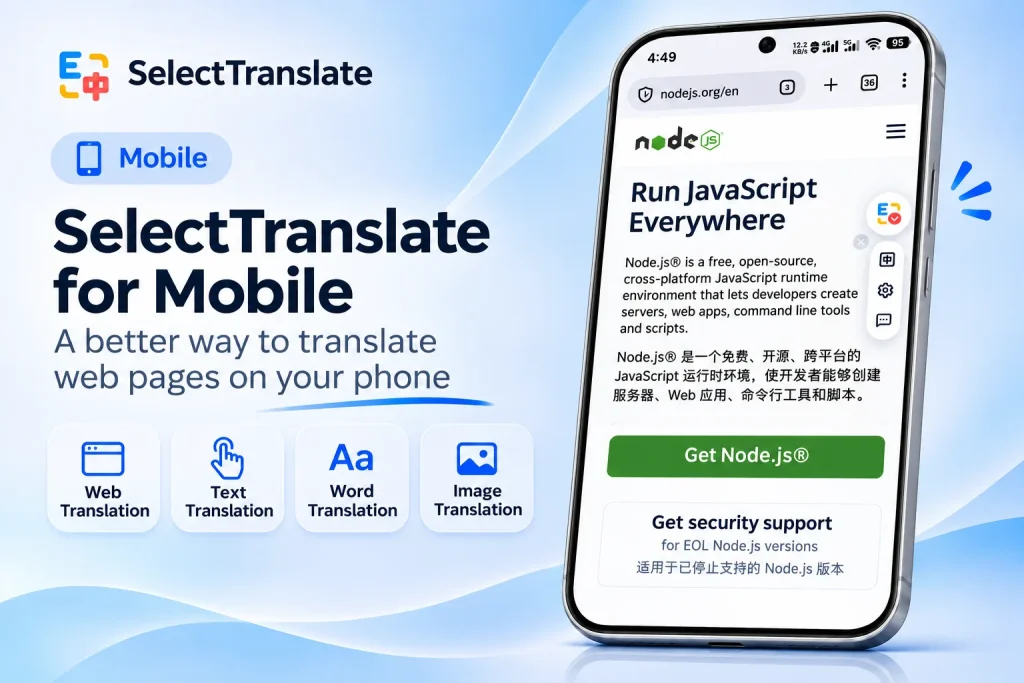
Browsing websites in another language on your phone doesn’t always mean you need to translate everything. Sometimes you want to read an entire article in your preferred language. Other times, you just need help understanding a paragraph, an unfamiliar phrase, or some text in an image.
On a desktop, switching between these tasks is relatively straightforward. On a phone, however, selecting text, copying it, and switching to a translation app can quickly interrupt your reading.
That’s why we’ve adapted SelectTranslate for mobile browsing. Available on Safari for iOS and Firefox for Android, SelectTranslate brings webpage translation, gesture-based paragraph translation, text selection, and image translation directly into your mobile browser.
Translate Entire Webpages Without Interrupting Your Reading
When you’re reading a foreign-language news article, technical guide, or gaming walkthrough, translating the entire page is often the easiest option.
With SelectTranslate, you can access webpage translation through the floating button along the edge of the page and read the translated content without leaving the website.
There are two reading modes to choose from. Bilingual mode displays translations beneath the original text, making it easy to follow both languages. Translation-only mode lets you focus on the translated content for a more streamlined reading experience.
Whether you’re catching up on international news or working through a lengthy article, you can choose the layout that feels most comfortable on your phone.
Translate Just the Paragraph You Need
Not every webpage needs to be translated from top to bottom. You might be scrolling through a Reddit discussion and understand most of the comments, only to come across one paragraph that’s difficult to follow.
Translating the entire page just for those few sentences isn’t always necessary.
For situations like this, SelectTranslate supports gesture-based paragraph translation on mobile. Depending on your settings, you can use a two-finger tap, double-tap, or triple-tap to trigger a translation of the paragraph you’re interested in.
This brings the convenience of desktop hover translation to touchscreens, without requiring a mouse, keyboard shortcuts, or manually selecting an entire paragraph.
Whether it’s a specific instruction in a gaming guide or a comment in an online discussion, you can translate the part you need while leaving the rest of the page as it is.
Translate Selected Text and Images
Sometimes you only need to check the meaning of a single word or phrase. In other cases, the text you want to understand isn’t selectable at all.
For individual words and phrases, SelectTranslate works with your phone’s familiar text-selection controls. Simply select the text and tap the floating button to open the selection translation interface.
But foreign-language content isn’t always presented as regular webpage text. Product diagrams, screenshots in gaming guides, and illustrations may contain text embedded directly in images.
SelectTranslate also supports gesture-based image translation on mobile. You can trigger image translation using supported touch gestures, allowing the extension to recognize text within an image and display translations in the corresponding areas.
For example, when viewing a product diagram on an overseas shopping website, you can translate the labels directly on the page rather than saving the image and uploading it to a separate tool.
Image translation gestures can also be enabled or disabled independently, giving you more control over how you interact with images while browsing.
Designed for the Way You Use Your Phone
Bringing a browser extension to mobile involves more than fitting a desktop interface onto a smaller screen. Touch controls, limited screen space, and the way people navigate webpages all influence how comfortable an extension feels to use.
On desktop, moving your mouse over a paragraph and using a keyboard shortcut can feel effortless. On mobile, the same task needs a different approach. Touch gestures make it possible to translate specific content without relying on desktop-style controls.
We’ve also refined SelectTranslate’s floating button and translation interface for mobile screens. Tapping the floating button opens a compact menu with access to settings, feedback, and other controls, while the selection translation popup is adapted for smaller displays.
These adjustments may seem less noticeable than adding a new translation feature, but they make a difference in everyday browsing. When you only want to look up a word or translate a short passage, the interaction should be just as convenient as the result.
Touch gestures may behave differently on certain websites due to their own page layouts and touch interactions. That’s why SelectTranslate offers multiple ways to access translation, so you can use whichever works best for the page you’re viewing.
Make Mobile Translation Work for You
Everyone reads differently. Some people prefer to translate an entire foreign-language webpage and read it in their native language. Others like to keep the original text visible and only translate the parts they don’t understand.
With SelectTranslate for mobile, you don’t have to choose just one approach. You can translate full pages, individual paragraphs, selected words, or text within images, depending on what you’re reading.
Translate the whole page when you need to. Translate only what matters when you don’t.
By making these tools accessible through familiar mobile interactions, we want to make translation feel like a natural part of browsing, rather than an extra task.
SelectTranslate is available for Safari on iOS and Firefox on Android. Visit the SelectTranslate website to find the right version for your mobile browser.