

Models Configuration Process
1. Open Extension Options
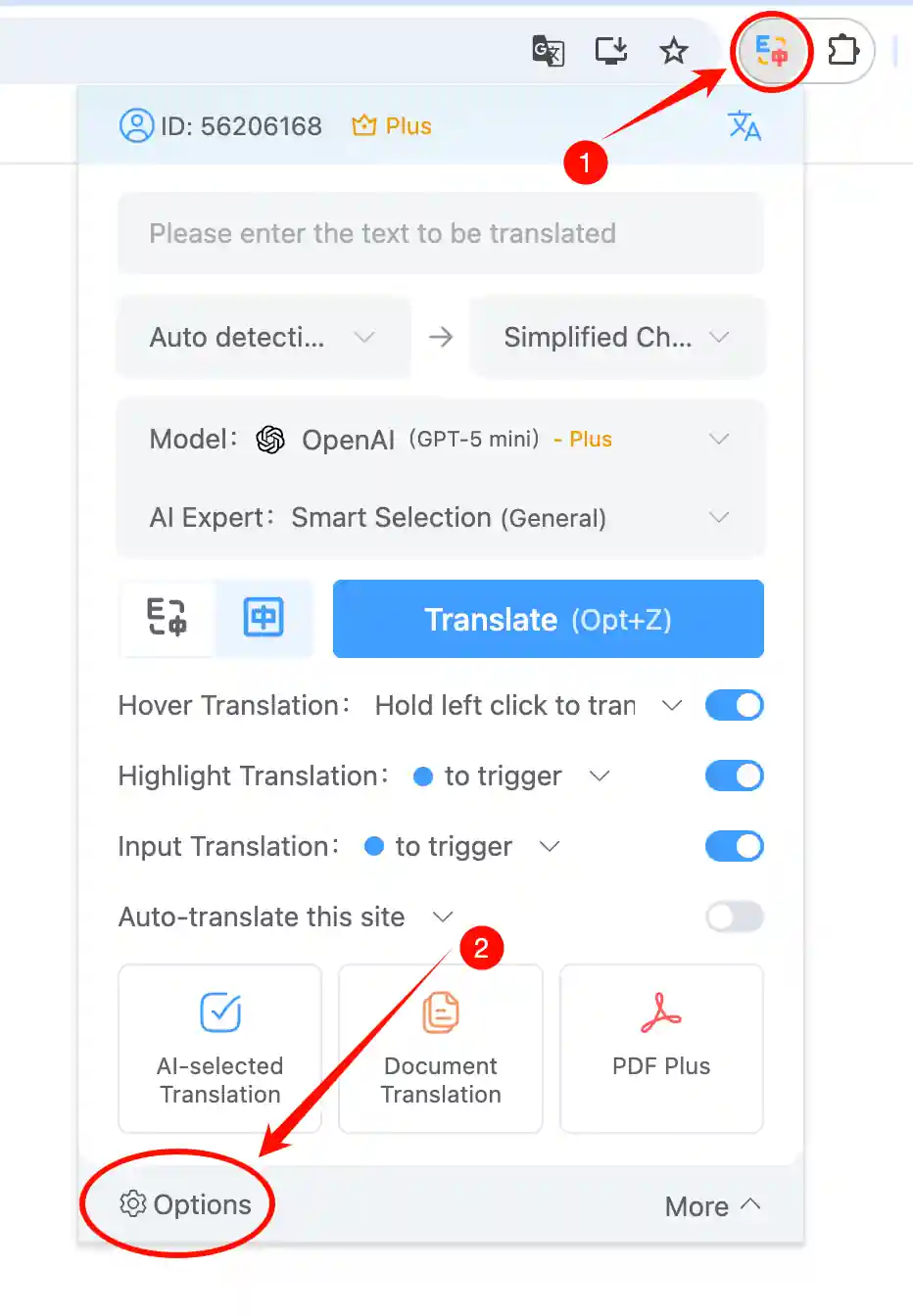
Let’s take the Chrome browser as an example: click the extension icon in the upper-right corner of the page, then select Options to open the extension’s settings page.
2. Select Using a custom API Key and enter your API Key.
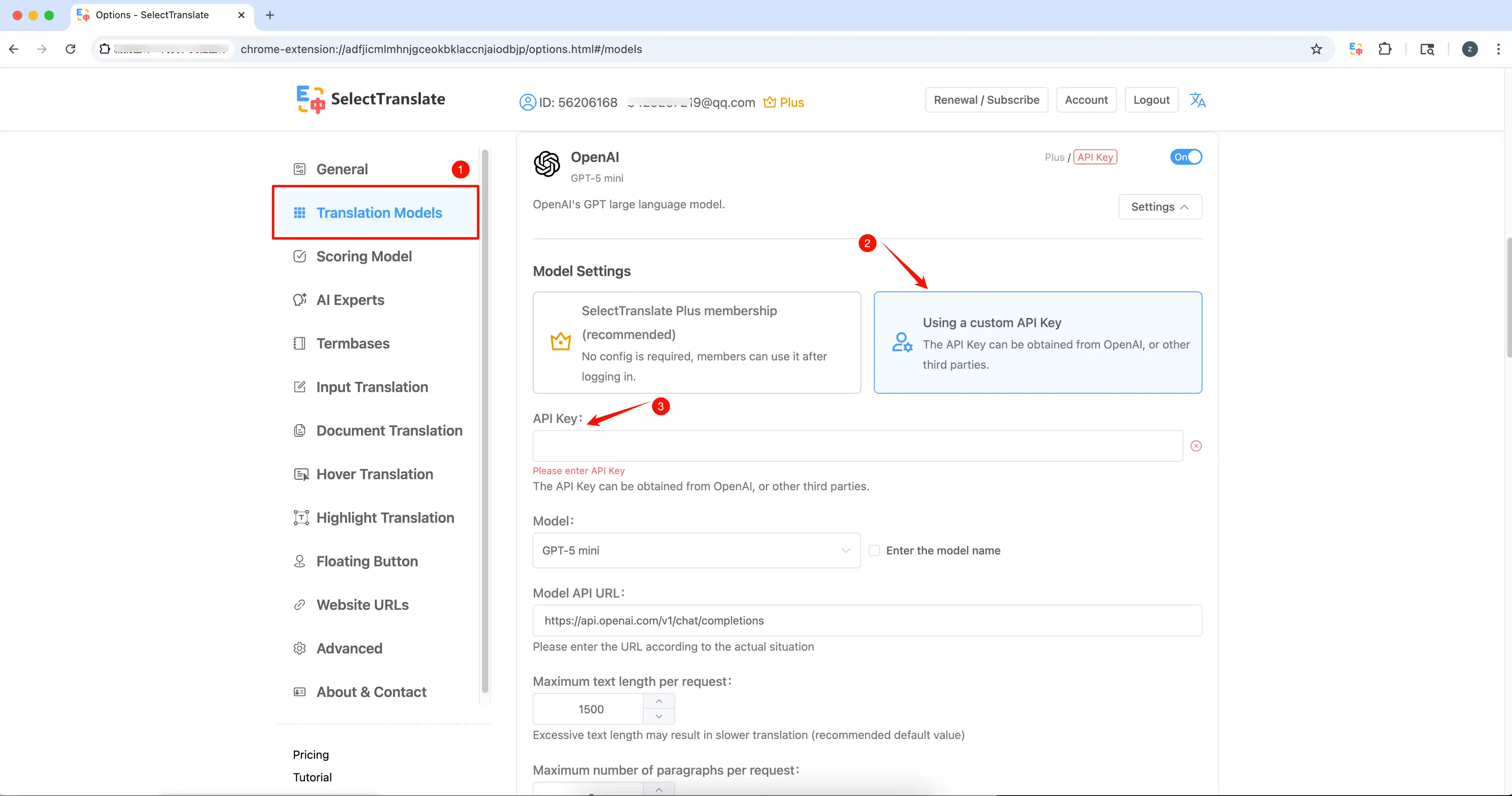
In Translation Models, select Using a custom API Key and enter your API Key in the input field. Once verification succeeds, the basic integration is complete.
3. Configure model parameters and prompts(optional)
You can configure the model, URL, Maximum text length per request, request rate, Temperature, and other parameters as needed. Custom System Prompts and User Prompt templates are also supported.
If you run into any configuration issues, please refer to the Models Configuration Introduction.
💡 You can customize these options based on your needs, but in most cases, the default settings are sufficient for typical translation scenarios.