

FAQs
Installation
1. How do I update the extension?
Extensions installed from browser stores usually update automatically within 24 hours after a new version is released. If you want the latest version immediately, open your browser's extension management page, enable Developer mode, and click the Update button.
2. Browser compatibility
SelectTranslate is currently available in the Chrome, Edge, and Firefox extension stores. For the best experience, we recommend using one of these browsers.
If you use Chromium-based browsers such as Opera, Dia, 360 Chrome X, or QQ Browser, please download the CRX package and install it manually.
Translation
1. When translation is unavailable
Translation is temporarily unavailable on browser default pages with an empty address bar, third-party extension pages, and invalid or broken web page URLs.
2. Why does an exclamation mark appear on the translated page?
When an error occurs during translation, an exclamation mark appears on the page. Hover over it to view the detailed error message. Common causes include:
- Network connection issues: The extension cannot connect to the server. Check whether your network connection is working properly.
- Insufficient translation quota: Your available translation quota is too low. You can resolve this by purchasing more quota.
- Language support issues: The current translation model may not support the selected language. Try switching to another model or target language.
3. Why are shortcuts not working?
Shortcuts may be disabled by the security or interaction restrictions of certain web pages, or they may conflict with other extensions or system shortcuts. In this case, try changing the shortcut or using another way to trigger translation.
4. Why is part of the page not translated?
Some page content may not be translated because of dynamic loading, script restrictions, or unrecognized elements. You can use Hover Translation or Selection Translation to translate the missing content.
5. Invalid API key
- Incorrect API key format: For example, it may include extra spaces, line breaks, or invalid characters. Check carefully when copying to avoid hidden characters.
- API key does not match the service: For example, using an OpenAI API key for a DeepSeek model.
- Insufficient quota or permissions: Your account balance may be zero, your daily quota may be used up, or you may have exceeded the provider's rate limit (QPS).
- API key expired: Some services issue API keys with an expiration date. If expired, apply for a new one.
- Network problems: If the connection fails, check whether your network and the platform service are working normally.
File Translation
1. How do I translate local files?
- Method 1: Open SelectTranslate, go to Document Translation, and upload your local file for translation.
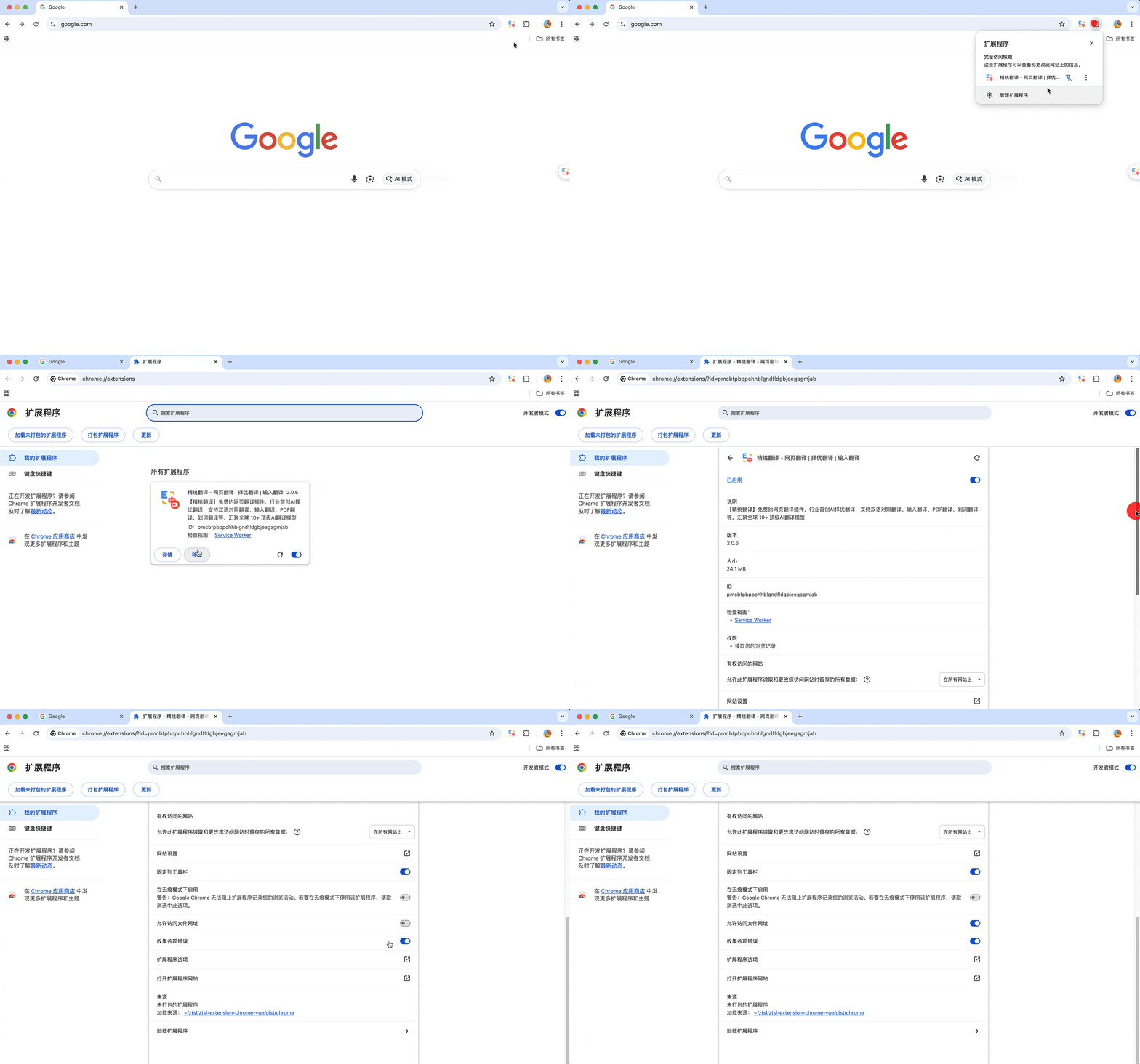
- Method 2: If you are using Chrome, Arc, Edge, or another supported browser, enter chrome://extensions in the address bar, find the SelectTranslate extension, and enable Allow access to file URLs. Then open your local HTML file in the browser and right-click to choose Translate.
2. The page becomes slow or crashes after file parsing
If a file contains too much content, parsing may take a long time and cause the page to lag or the browser to crash. For a smoother experience, we recommend simplifying the file content or translating it in batches.