

Quick Start
Bilingual Webpage Translation
The following are several ways to use SelectTranslate for bilingual webpage translation:
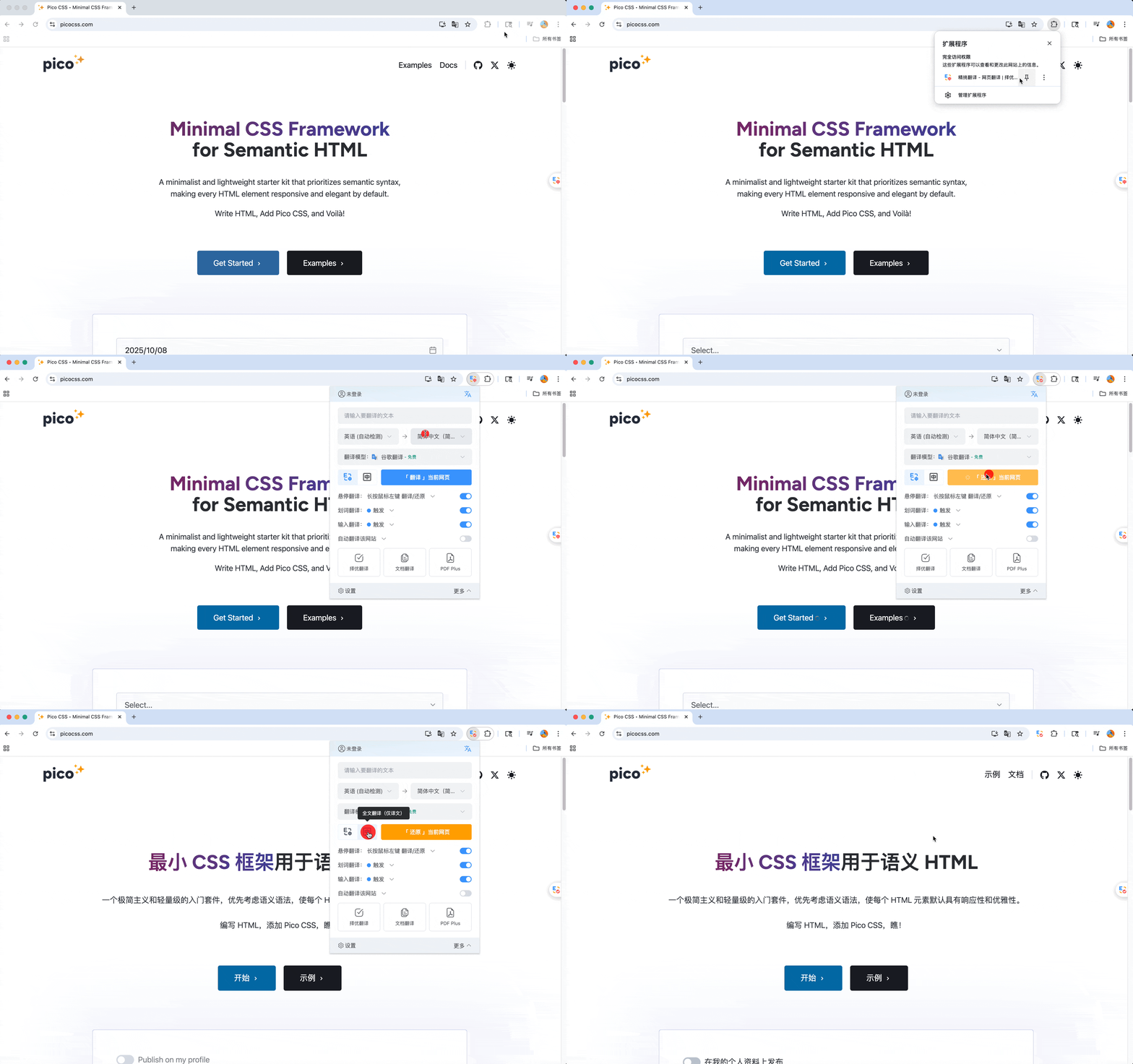
After installing the SelectTranslate extension, first click Extensions management in your browser and pin SelectTranslate to the extensions toolbar.
(1) Click the SelectTranslate extension. In the popup extension panel, click Translate to start the translation process:
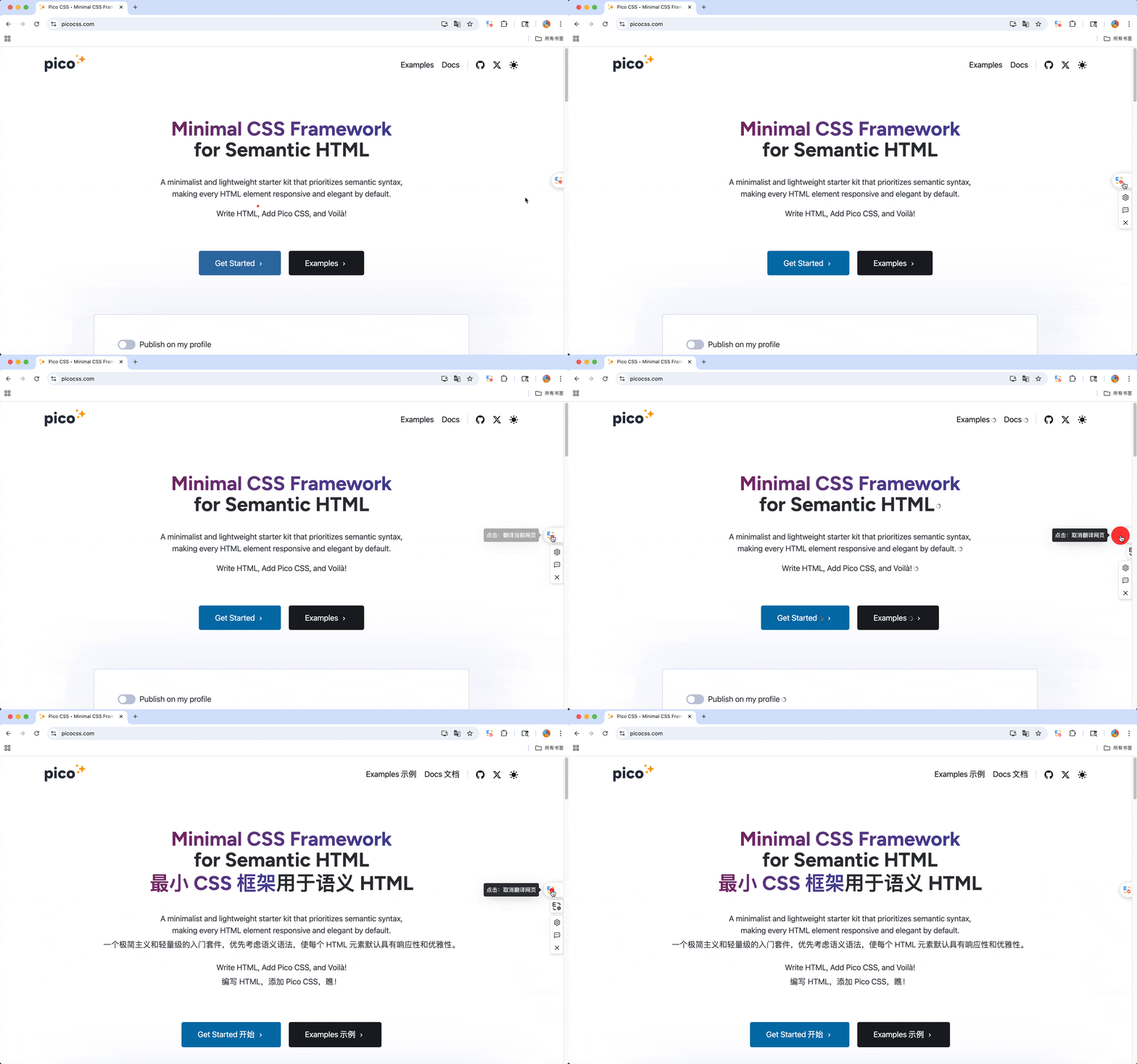
(2) Alternatively, you can quickly translate the page by clicking the Floating Button on the right side of the webpage:
(3) You can also right-click anywhere on the webpage and select Translate to XX language or Restore current page to translate or revert the page.

As shown above,webpage translation is just that easy! 👍👍👍
Extension Preferences
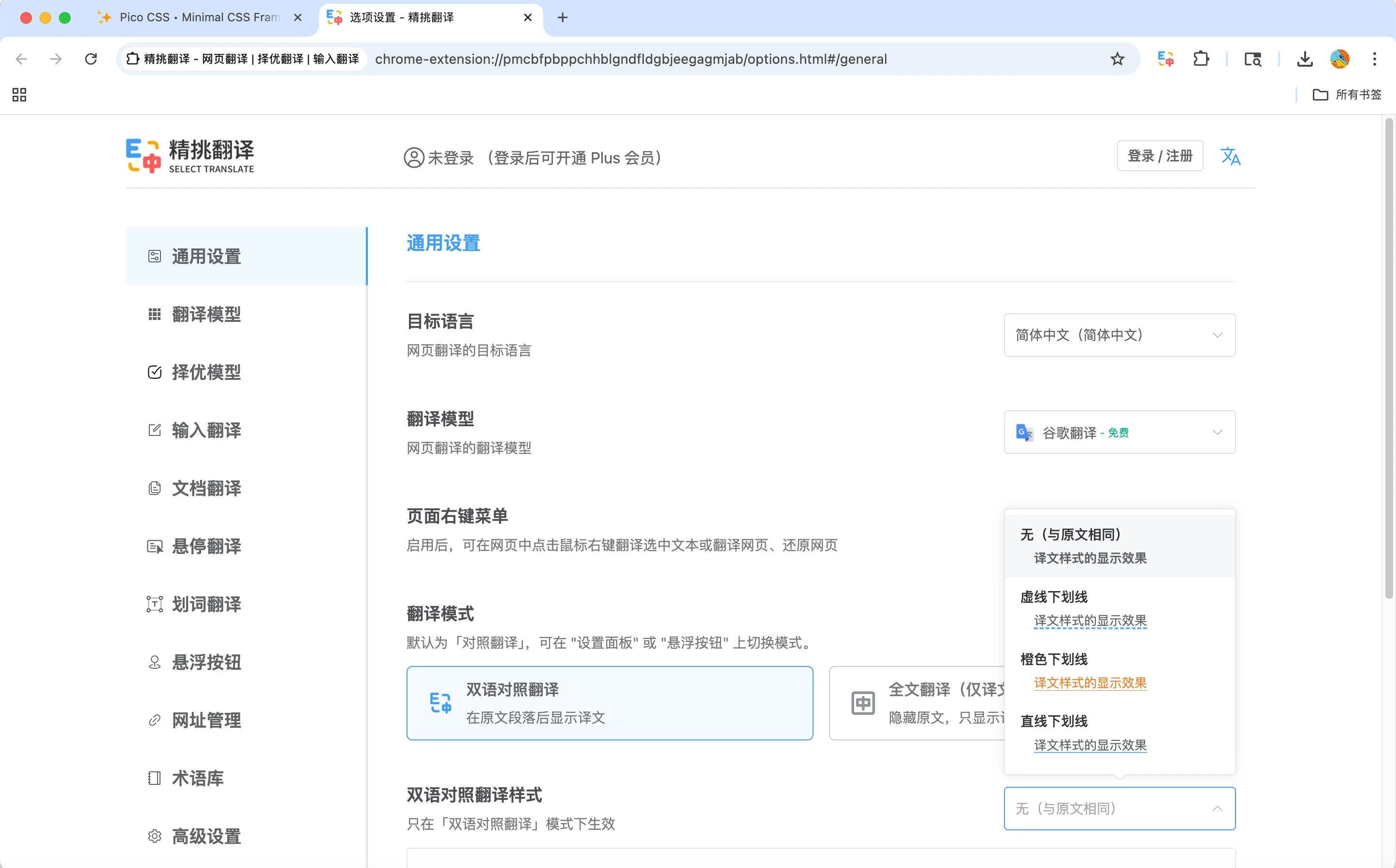
Click the SelectTranslate icon in your browser’s extension toolbar, then select Options in the lower-left corner of the popup panel to enter the extension settings page. Here, you can customize preferences as needed, such as adjusting the display style of bilingual translation:
Video Subtitle Translation
Video Subtitle Translation supports bilingual subtitle translation on major global video platforms such as YouTube, Netflix, Disney+, and TED. The AI subtitles feature also enables real-time translation for videos without built-in subtitles.

Online Meeting Subtitle Translation
Online Meeting Subtitle Translation is an extension of video subtitle translation. It generates real-time subtitles from meeting audio, helping you easily understand the content and enabling seamless cross-language communication.
Input Translation
After entering text in a webpage input field, click the icon or use a shortcut key to translate it. Powered by Optimal Translation, the system intelligently recommends the best translation, making the output more accurate and reliable. See the demo
PDF Translation
SelectTranslate offers two PDF translation options: Free PDF Translation and PDF Plus Translation.
(1) Free PDF Translation: Supports fast translation for everyday documents (scanned PDFs are not supported).
(2) PDF Plus Translation: Supports recognition of complex formulas and translation of scanned documents, making it ideal for academic papers and other professional materials.
Free PDF Translation
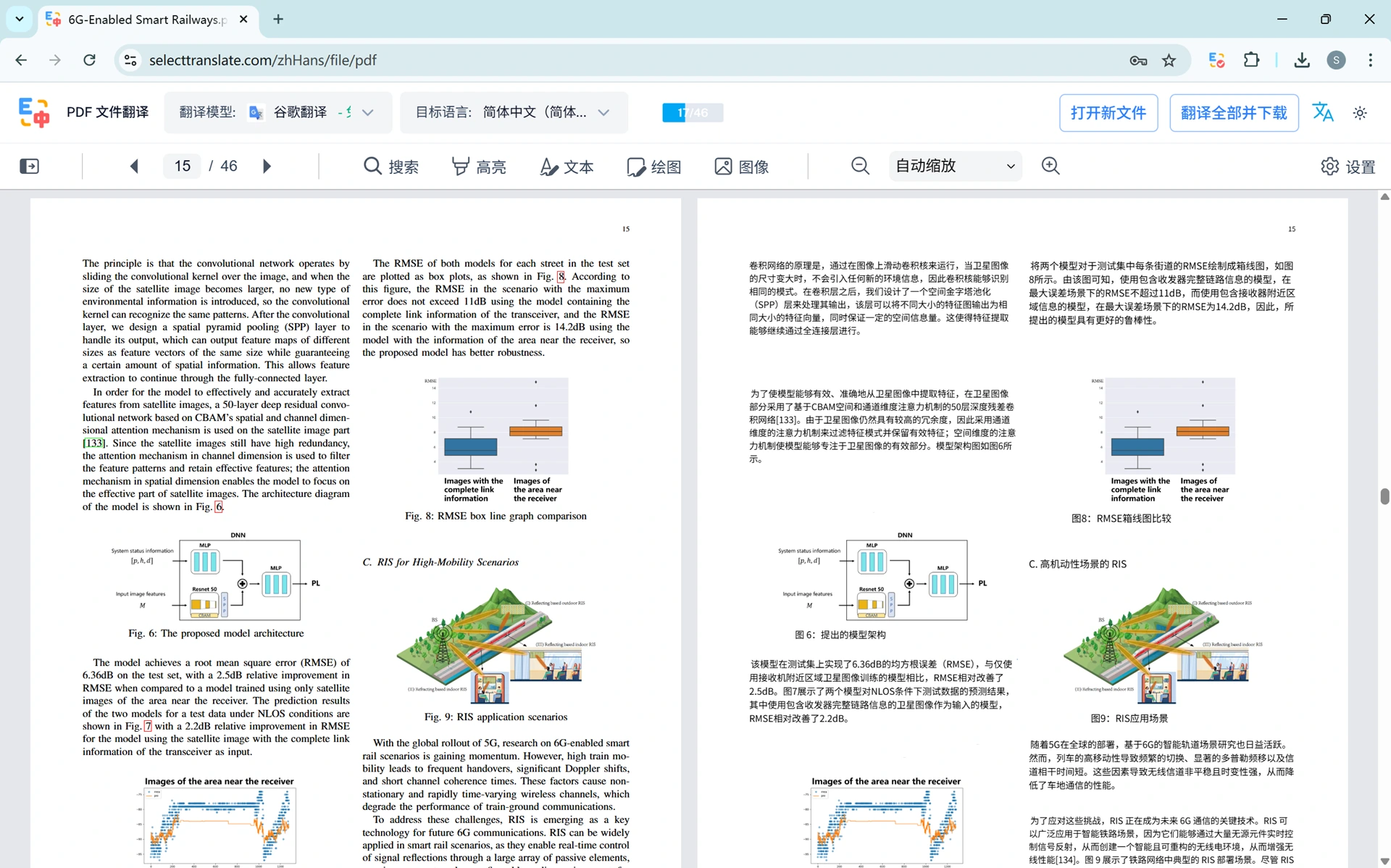
Open the PDF file you want to translate, select the translation model and target language, then click Translate Now to begin the translation.
PDF Plus Translation
Go to the PDF Plus page. After uploading your file, configure the translation model, target language, Translation Mode, and page range, then click Translate Now to start the translation. For detailed steps, please refer to the video tutorial:
📣📣📣 Special Offer: SelectTranslate has partnered with MinerU to provide all users with 300 pages per day of free PDF Plus processing quota, while Plus members receive 1,000 pages per day.
Limited-time offer! Click here: Try it now! 👏。
Optimal Translation
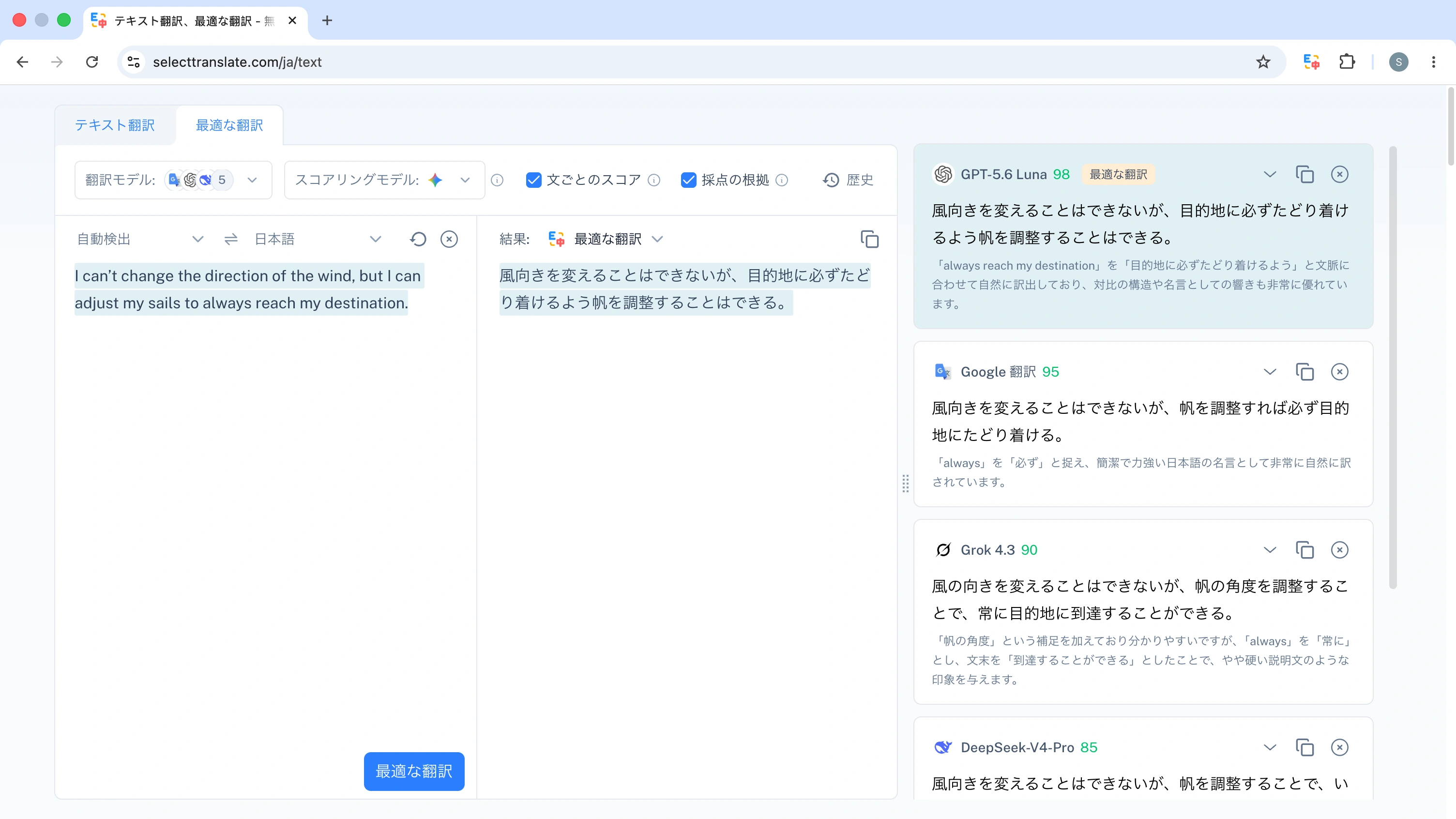
You can call multiple translation models simultaneously and evaluate their outputs using a Scoring model. You may also enable Score by sentence and Scoring rationale as needed.
After selecting the target language and entering your text, click Optimal Translation to generate translations from different models along with their scores and explanations. The system will then intelligently recommend the best result. You can also choose the final output manually based on the scores and explanations, making it especially suitable for copywriting and content translation scenarios.
Hover Translation
Hover your mouse over a paragraph on a webpage and press a shortcut key to display the translation directly after the original text.
Hover Translation provides two modes: Translate by paragraph (default) and Translate by area.
Selection Translation
After selecting text, a blue dot will appear automatically. Hover over it to view both the original text and the translation. When selecting a single word, you can also see phonetics, pronunciation, and example sentences.